



You’ve landed, set your morning alarm again, and left your suitcase in the hallway. You open your phone’s settings, and there it is: the eSIM that kept you connected on your trip.
Should I delete it? Leave it on? Can I use it on my next getaway?
It’s one of those little things nobody mentions when you book a trip. Getting it right can save you an unnecessary setup—or that moment when you leave home and realize your internet only worked because you were on Wi-Fi.
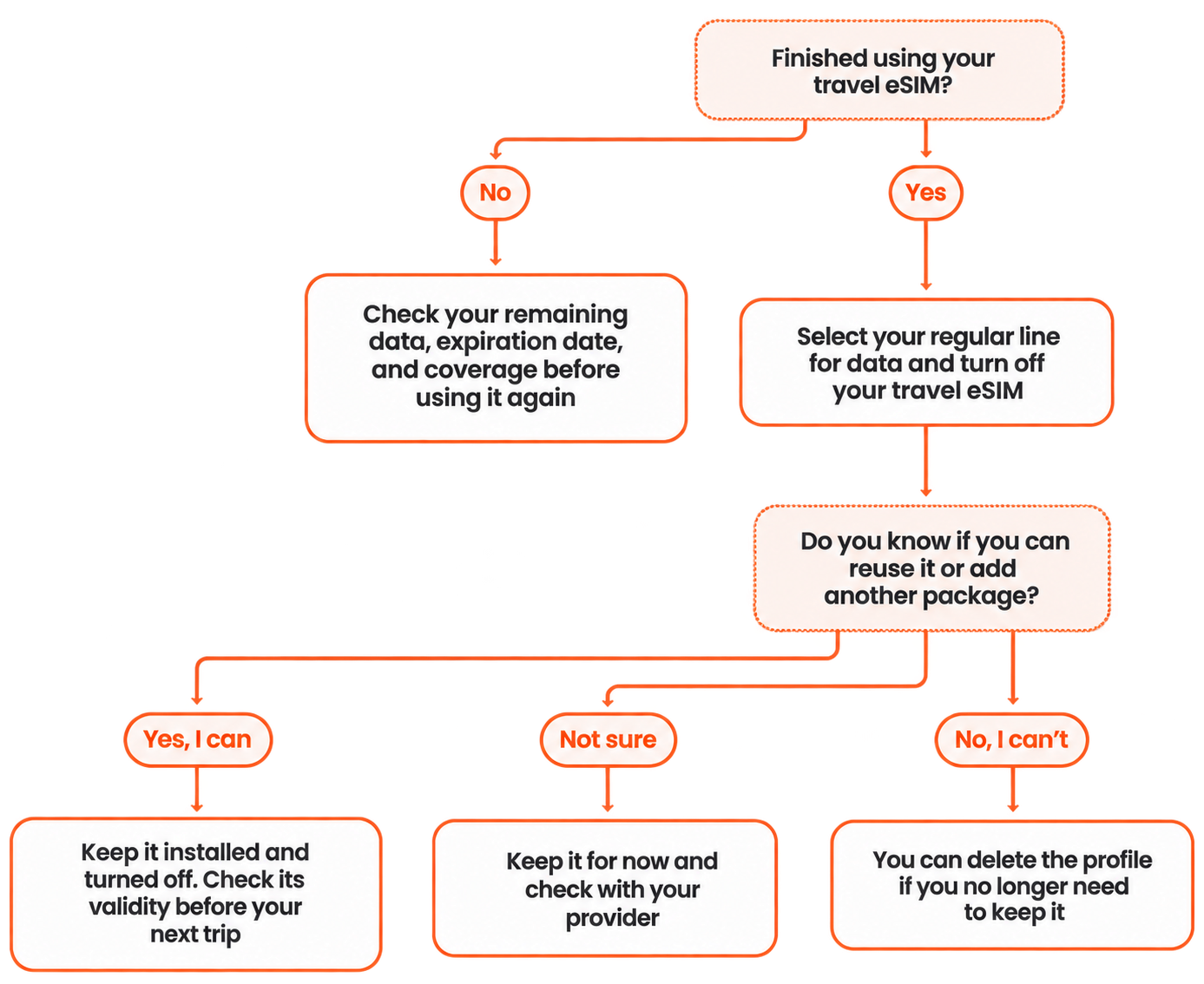
If you're wondering what to do with your eSIM after a trip, start here: select your regular line for cellular data and turn off your travel eSIM if you no longer need it. Before deleting it, check whether you can reuse it.
1. Back home? Switch back to your regular line
You set up your phone to use your eSIM for data while traveling. Now that you’re back, it’s worth checking those settings: being home doesn’t mean your phone has switched back to your regular plan. If your travel line is still selected, you could lose internet access when you leave Wi-Fi—even if your regular plan has plenty of data left.
Here are three things to check:
- Turn your regular line back on if you switched it off before leaving. This lets it reconnect to your carrier’s network. You’ll also need it to receive calls and texts, including verification codes from your bank.
- Select that line for cellular data, and check your call and text settings. These are separate settings: using your regular number for calls doesn’t necessarily mean you’re using the same plan for data.
- Turn off your travel eSIM if you’re done using it. Turning off the line keeps the eSIM profile installed while you check whether you can use it again. You don’t need to tap “Delete eSIM” to stop using it.
If you keep both lines on, check automatic data switching too. This feature lets your phone switch between the two lines in certain situations. Turn it off if you want to use only your regular plan for data.
Before changing anything, identify each line by its number, carrier, or installation details. Names like “Primary” and “Secondary” are just labels—they don’t tell you for sure which one is your regular plan. Once you’ve identified them, choose names you’ll recognize easily, such as “Primary” and “TurTrip Travel”.
Finally, turn off Wi-Fi and open a website. It’s a quick way to catch any settings you’ve missed before you leave home and actually need your data.
2. Turning off an eSIM and deleting it are different things
In your phone’s settings, switching your data line, turning off an eSIM, and deleting it can look like different ways of doing the same thing. But only one of those actions removes the installed profile. Knowing which option to choose helps you get back to your regular connection while keeping an eSIM you might be able to reuse.
| Action | What actually happens | When to choose it |
|---|---|---|
| Switch your data line | You choose which SIM your phone uses for cellular data. The other line can stay on. | When you want to use your regular plan for data again. |
| Turn off the eSIM | You turn off the line but keep its profile installed. You can turn it back on later, though you’ll need a valid plan to use data. | When your trip is over and you want to keep the eSIM while you check whether it can be reused. |
| Delete the eSIM | You remove the profile from your device. Getting it back may require help from your provider or a new eSIM. | When you’ve confirmed you no longer need it, you’re giving your phone to someone else, or your provider tells you to delete it. |
For example: you’re back from Japan and want to use your regular plan again. You can select it for data and turn off your travel eSIM. That way, you stop using the eSIM without deleting it while you check your options for next time.
Before you decide, keep these differences in mind:
- Keeping the profile doesn’t mean keeping your data forever. Your data package’s validity and your ability to reuse the eSIM are two separate things.
- Turning it off doesn’t necessarily pause your plan’s validity. Check the expiration date before counting on any leftover data.
- Deleting it doesn’t cancel a subscription. If your service renews automatically, you’ll need to manage that with your provider.
Not sure what to do? Start by turning it off. You can decide whether to delete it once you’ve checked the terms. Apple advises against deleting an eSIM as a first step when troubleshooting a connection problem, and says you’ll need to contact your carrier for a new one after deleting it. See Apple’s guide to deleting an eSIM.
3. How to turn off your travel eSIM on iPhone and Android
Menu names can vary by phone model, software version, and language. Always make sure you’re selecting your travel line.
On iPhone
- Open Settings → Cellular or “Mobile Data.”
- In Cellular Data, select your regular line.
- Go back to your list of lines, select your travel eSIM, and turn off Turn On This Line.
- Make sure your regular number is selected as your default voice line.
If you keep two lines on, check Allow Cellular Data Switching: turn it off if you don’t want your phone to switch between them. Apple explains how to select your lines and use this feature in its Dual SIM guide.
On Samsung Galaxy
Go to Settings → Connections → SIM manager. Check which SIM is selected for mobile data and choose your regular one. Then turn off the switch for your travel eSIM.
Stop there if you want to keep it: don’t tap “Remove.” Samsung’s official eSIM guide explains the difference between turning off a plan and removing it from your phone.
On Google Pixel
Open Settings → Network & internet → SIMs and select your regular line for data. To turn off your travel eSIM, open that SIM’s settings and turn off Use SIM; depending on your software version, you may find it under “Mobile network.”
If you leave both lines on, check automatic data switching too. You’ll find the steps in Google Pixel’s official Dual SIM help.
On other Android phones, search Settings for “SIM” or “mobile data.” Don’t tap a delete button just because your menu looks a little different.
4. Give it a real test: turn off Wi-Fi
It’s easy to think everything’s working when your phone is still connected to your router.
Turn off Wi-Fi for a moment and open a website. Check which line you’ve selected for data. If you changed your voice line too, make a test call using your regular number.
No internet? Check that cellular data is on and that you’ve selected an active line with service. Try turning airplane mode on and off. If that doesn’t help, restart your phone.
If your regular plan still isn’t working, contact your carrier before deleting profiles or changing APN settings. You’ll be able to tell them which line you’re using and what you’ve already checked, instead of starting from scratch.
5. Your eSIM and your data have different expiration dates
There’s a difference between the profile installed on your phone and the data package you bought. Seeing an eSIM in your settings doesn’t mean it still has service available.
Before counting on leftover data, check three things in your order details or account:
- Data balance: how much data you actually have left.
- Validity: how long you have to use it.
- Coverage: which countries the package works in.
For example, if your package has an expiration date and you have 2 GB left, don’t assume you can save it until the holidays. Turning off the line doesn’t put your plan on hold: check the package terms before counting on that data for another trip.
If you bought a regional plan, check whether it covers your home country before trying to use your remaining data after you return. A name like “Europe” or “global” is no substitute for the actual list of destinations.
6. Can I reuse my TurTrip eSIM?
With TurTrip, you can add a new package to the same eSIM without installing it again. The eSIM expires six months after its last use and stays linked to the device where you activated it. If you switch phones, you’ll need a new one.
That profile validity doesn’t extend the life of the data you bought.
Before reusing it, go to “My eSIMs” and check its status. Then check which package you can add for your destination and when it activates. If you’re unsure how to top up, ask us before buying another eSIM.
A handy habit: save a note with the name you gave the line, the trip you used it on, and your return date. A few months from now, that will be easier than trying to remember what “Secondary 2” meant.
7. Use what you learned about your data usage
Right now, you still remember whether you spent your trip checking maps, using your phone as a hotspot for your laptop, or uploading videos every night. It’s a good time to jot it down, before all your trips start blending together.
Note how many days you were away, how much data you used according to your account, and whether you relied heavily on Wi-Fi. If you check your phone’s data counter, look at the date range first—it may include days before your trip.
With that reference, choosing your next package will be easier. To see which activities use the most data, take a look at our guide to how many GB you need when traveling.
The suitcase can wait. These settings are worth sorting out now
Before you call the trip officially over, take a moment to get your phone ready for everyday life again. Use this quick checklist to make sure you haven’t missed anything:
☐ Regular line turned on and selected for calls and texts.
☐ Cellular data set to your regular plan. If you keep two lines on, check automatic data switching too.
☐ Travel eSIM turned off if you no longer need it, with the profile kept installed while you check whether you can reuse it.
☐ Connection tested without Wi-Fi, to confirm that your regular line can get you online.
☐ Package expiration date and top-up options checked. Remember: keeping the eSIM doesn’t extend the life of your leftover data.
A few quick decisions now mean less to figure out with a backpack on at your next airport. Save this checklist for your next trip home.
When your next trip comes around, you’ll know where to start
Check the eSIM you’ve kept and choose a package that fits your destination and the length of your trip. At TurTrip, we’ll help you get connected for your next adventure.
Find your eSIM for your next tripSources consulted: Apple: eliminar una eSIM; Apple: uso de doble SIM; Samsung: usar una eSIM en un Galaxy; Google Pixel: uso de doble SIM; recursos de TurTrip enlazados en el artículo. Los menús pueden variar según el dispositivo y la versión del sistema. Antes de reutilizar una eSIM, comprueba las condiciones y la vigencia de tu plan.