



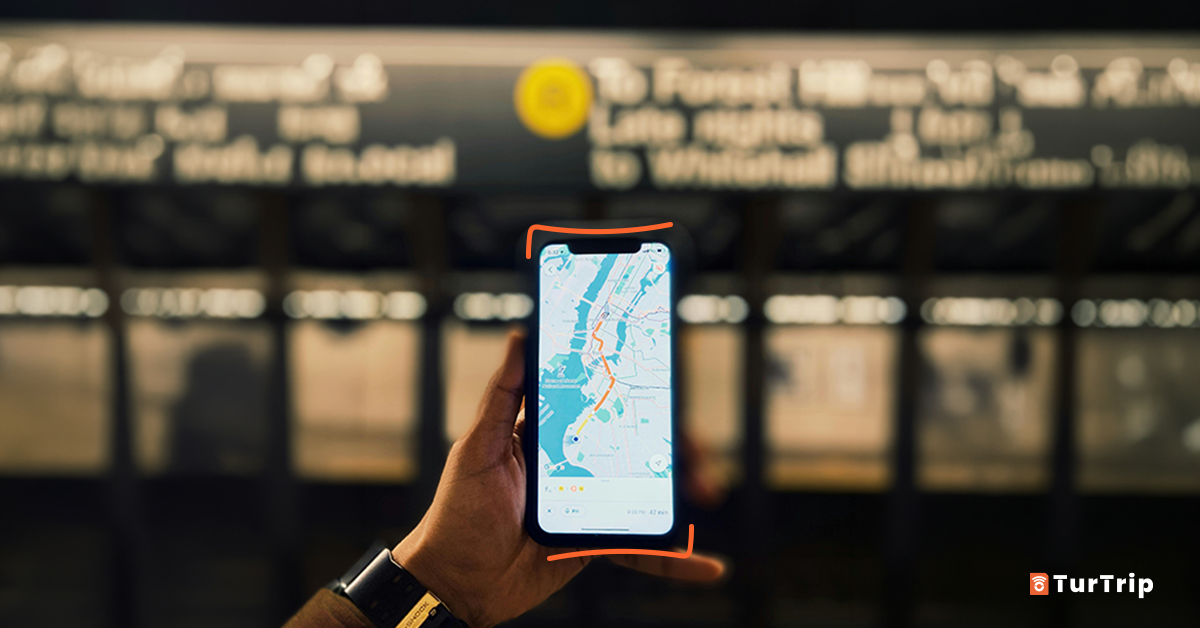
There are two types of travelers: those who land knowing exactly how to get to their hotel… and those hunting for airport Wi-Fi with a suitcase in one hand and their phone in the other.
The good news is that Google Maps works offline too. And no, we don't mean taking a screenshot before your flight and hoping your sense of direction will do the rest.
If you download offline maps before you go, you can look up streets and addresses and see where you are, even when you have no mobile data or your signal vanishes just when you need it.
Being online makes travel easier, but knowing how to use Google Maps offline can save the day.
Can you use Google Maps without internet?
Yes, but there are a few things to keep in mind.
Download a map of your destination before you go and Google Maps can still show it when you're offline. Your phone's GPS can also show you where you are: it doesn't need mobile data to work.
So you can follow your position on the map and check you're heading the right way, even with airplane mode on.
Offline, you can:
- See the streets included in your downloaded map.
- Look up addresses within that area.
- Find your location using your phone's GPS.
- Access the map even without a signal.
- Use navigation and get directions when driving.
- Spot places you've saved before your trip.
But remember: for offline driving directions, your whole route needs to fit inside the map you've downloaded. Downloading just the city center won't be enough if the airport is 40 kilometers away.
It's a small detail that makes a big difference when you've just landed, roaming hasn't kicked in yet and the airport Wi-Fi has other plans.
Because getting lost can be fun… until it's 11 pm, you're hot and tired, and there's a suitcase to drag along.
How to download offline maps in Google Maps before you travel
It only takes a few taps, and the steps are much the same on iPhone and Android.
Step by step
- Open the Google Maps app.
- Tap your profile picture or initial.
- Go to “Offline maps”.
- Select “Your own map” or “Select your own map”.
- Move the box and zoom in or out until it covers the whole area you need.
- Tap “Download”.
You can also search for a city or place, open its details and tap “More” → “Download offline map”.
Download your maps over Wi-Fi before you go. The bigger the area, the bigger the download.
Google Maps shows you the download size before you start, so you can choose a smaller area if your phone is running out of space.
Important: map downloads aren't available in every country or region due to contractual restrictions, language support or address formats. You can find up-to-date information in Google Maps' official help center.
An easy mistake: downloading the city center but forgetting the airport
Say you're heading to London and download a map of the city center. You land at Gatwick or Stansted, open Maps… and realize the airport and half the journey to your hotel aren't on it.
To avoid this, make sure you include:
- Your arrival airport or station.
- Your accommodation.
- The approximate route between the two.
- The areas you plan to visit.
- Any day trips outside the city.
Visiting a few cities? Download a map for each one and give them names you'll recognize at a glance, like “Rome”, “Florence” or “Rome Airport”.
What you can (and can't) do with Google Maps offline
Downloaded maps are an excellent backup, but they don't fully replace an internet connection.
What works with Google Maps offline
|
View streets, roads and place names |
Available |
|
Check your location using GPS |
Available |
|
Search for addresses within the downloaded map |
Available |
|
Navigate and calculate driving routes |
Available* |
|
Get turn-by-turn driving directions |
Available* |
|
Zoom in, zoom out and move around the map |
Available |
|
See markers for previously saved places |
Available** |
|
Use the map with poor coverage or an unstable connection |
Available |
|
Use Google Maps in airplane mode |
Available*** |
* Provided the entire route is included in your downloaded map.
** You can see saved places, but some details, such as opening hours, reviews or photos, require an internet connection.
*** Keep your phone's location services switched on so GPS can show you where you are.
What still needs an internet connection
|
Walking routes |
Unavailable |
|
Cycling routes |
Unavailable |
|
Public transport routes and timetables |
Unavailable |
|
Real-time traffic, accidents and road closures |
Unavailable |
|
Alternative routes based on traffic |
Unavailable |
|
Journeys outside the downloaded area |
Unavailable |
|
Searching for restaurants, shops and other businesses |
Limited information |
|
Up-to-date opening hours, reviews, photos and prices |
Internet connection required |
|
Street View and up-to-date imagery |
Internet connection required |
|
Sharing your location in real time |
Internet connection required |
|
Downloading or updating maps |
Internet connection required |
Google confirms that walking, cycling and public transit directions, live traffic and alternative routes are unavailable offline. Your whole route must also fit inside the downloaded area. For details, see Google Maps' official help center.
Keep in mind: your whole driving route needs to fit inside the downloaded map. Offline maps also expire, so give them a quick check a few days before you travel.
So if you're walking, you can use the map and the blue GPS dot to find your way, but Google Maps won't calculate a walking route or give you walking directions offline.
You won't know if the bus timetable has changed, a road is closed or that restaurant you've been looking forward to has picked today as its day off.
A simple travel trick: save your places before you go
Before you leave, save all the places you might need in Google Maps:
- Your hotel or apartment.
- The airport and stations.
- Restaurants and cafés.
- Landmarks and tourist attractions.
- Supermarkets or pharmacies.
- Coworking spaces, if you'll be working remotely.
- The meeting point for a tour.
- The car rental office.
Create a list for your trip and organize your saved places by city or day. Everything will be easier to find when you need it.
For a little extra peace of mind, copy your accommodation's full address into your phone's notes and take a screenshot of your booking. Your saved places may still show up on the map, but photos, reviews, opening hours and other up-to-date details need an internet connection.
After a twelve-hour flight, your future self will be very glad you thought of this.
Five quick checks before takeoff
Once your map is downloaded, run through these five quick checks before you go:
- Switch on airplane mode and open Google Maps. This lets you check that the map has downloaded correctly.
- Find your accommodation. Make sure you can locate it within the saved area.
- Check that the airport is included too. It's often quite a long way from the center.
- Update the map. Google Maps tries to update maps that are about to expire automatically when your phone is connected to Wi-Fi, but it's best to check before you leave.
- Keep location services switched on. Without them, GPS won't be able to show you where you are.
A quick check now beats finding out something's missing when you're already offline.
How much space do offline maps take up?
That depends on how big the area is and how much detail the map includes.
A city map might use a few hundred megabytes, while a whole region will need more room. Google Maps shows you the estimated download size before you start.
To make the most of your phone's storage:
- Only download the areas you'll actually visit.
- Use Wi-Fi.
- Delete maps from previous trips.
- Check when the map was last updated before traveling.
- On Android, check whether you can save maps to an SD card.
There's no need to download half the country “just in case”. Just make sure your map covers the key locations and the entire route between them.
Do offline maps expire?
Yes. Update your downloaded maps before they expire so you're traveling with the latest information.
Google Maps tries to update maps that are about to expire when your phone is on Wi-Fi. Still, if you downloaded yours weeks ago, open “Offline maps” a few days before you leave and check that they're all up to date.
You can update them manually there too.
Offline maps make a great backup. An internet connection does the rest.
A downloaded map can be a lifesaver when your signal drops, roaming is slow to kick in or you need to find your hotel as soon as you land.
But during your trip, you'll still need internet access to:
- Check public transit.
- See real-time traffic and travel disruptions.
- Book a taxi.
- Check bookings.
- Chat on WhatsApp.
- Use a translation app.
- Find restaurants and up-to-date opening hours.
- Change your route on the go.
That's why the best combination is simple: download your map as a backup and take an eSIM with data, so you can get on with enjoying your trip.
With TurTrip you can install your eSIM before you go and activate it at your destination. You'll be ready to get online when you land, with your offline map there as a backup if the signal drops.
Getting a little lost on purpose? That's part of the adventure.
Getting lost because Google Maps won't load? Not quite the same.
How much mobile data do you need for your trip?
Offline maps can save you data. Next, see how much Google Maps, WhatsApp, Instagram and your other apps use, so you can pick a plan that fits your trip without running out or paying for data you don't need.
Find out how much data you needSources consulted: Official Google Maps help: download areas and navigate offline, covering how to download, use, and update offline maps, along with their limitations.